Setup Phonegap 3.4 on Windows 8 64-bit to create Android applications
This tutorial explains how to setup Phonegap 3.4 on a Windows 8 64-bit machine and use it for Android application development.
Pre-requisites
Windows 8 64-bit
Node.js
Java SDK 7
Android SDK
Phonegap Installation on Windows
1. To start with PhoneGap installation, first download Node.js installer for Windows (node-v0.10.26-x64.msi) from the link given on Install PhoneGap page.
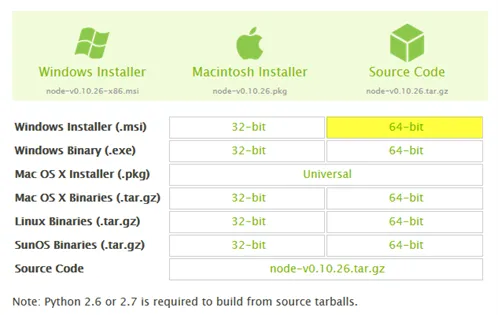
2. Run Node.js Windows installer using "Run as administrator" option.
3. After the installation is complete open Command Prompt (Admin) and run command: npm install -g phonegap
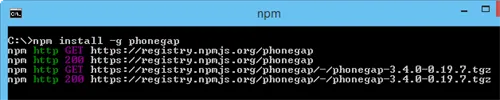
If the install process is successful, you will see following messages:
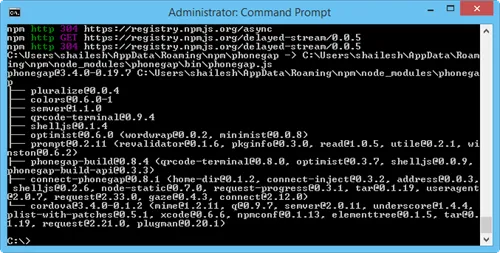
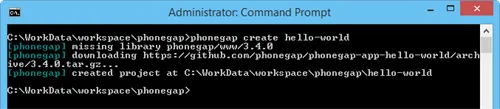
4. Create a "hello-world" app using this command: phonegap create hello-world
5. Install JDK 7 for Windows 64-bit (jdk-7u51-windows-x64.exe).
6. Extract the file adt-bundle-windows-x86_64-20131030.zip and move the extracted folder to "C:\Program Files" folder.
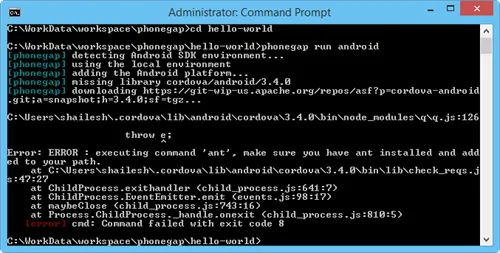
7. Try to run the command "phonegap run android" and it will fail will following message:
Error: ERROR : executing command 'ant', make sure you have ant installed and added to your path.
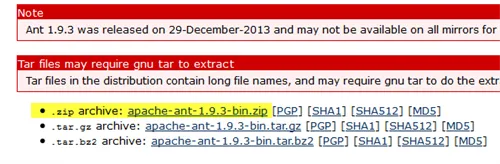
8. Download Apache Ant (apache-ant-1.9.3-bin.zip) and extract it to "C:\Program Files" folder.
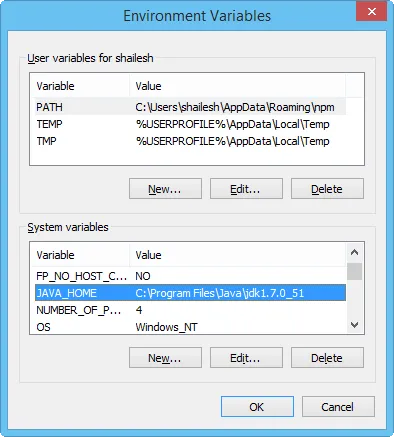
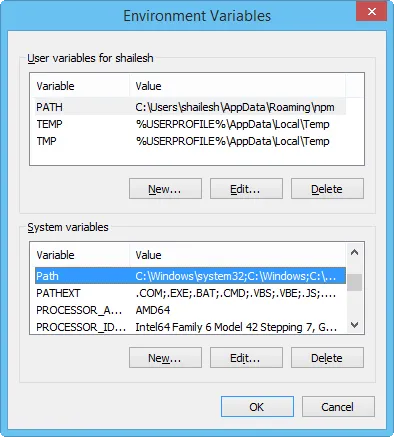
9. Next setup the paths in System Variables for Java and Apache Ant. Open Control Panel -> System -> click on Advanced system settings link -> click on Environment Variables button.
Under System Variables section, click on New button. Add a new system variable entry as given below:
JAVA_HOME - C:\Program Files\Java\jdk1.7.0_51
Note: DO NOT add any semi-colon (;) at the end of above path for JDK.
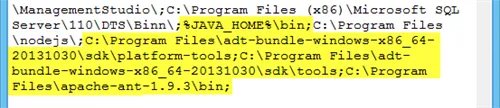
Now click on Edit for "PATH" variable under System variables section. Copy the platform-tools, sdk/tools and Apache Ant path as given below:
PATH - ...\ManagementStudio\;C:\Program Files (x86)\Microsoft SQL Server\110\DTS\Binn\;%JAVA_HOME%\bin;C:\Program Files\nodejs\;C:\Program Files\adt-bundle-windows-x86_64-20131030\sdk\platform-tools;C:\Program Files\adt-bundle-windows-x86_64-20131030\sdk\tools;C:\Program Files\apache-ant-1.9.3\bin;
Click on OK to save the new System variables. Close Command Prompt windows and re-open it.
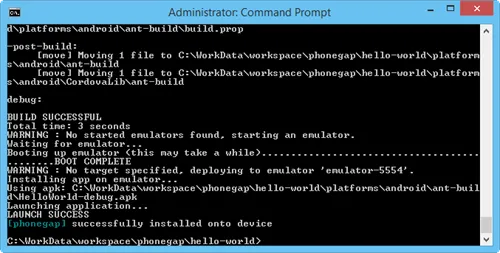
10. Now again run the command "phonegap run android". If an Android device is connected or if an AVD emulator exists, it will build and deploy the phonegap application.